Troubleshooting in Business Central
This page helps when a message appears in Business Central while getting or sending a file, or when nothing happens. Errors in the Windows service itself are under Service troubleshooting.
The "Filesharing Requests" page
Every action that needs the LAN (show folders, get file, send file, preview) creates a request in BC. It is the first place to look: search BC for Filesharing Requests (or open it from the Setup with the action Requests).
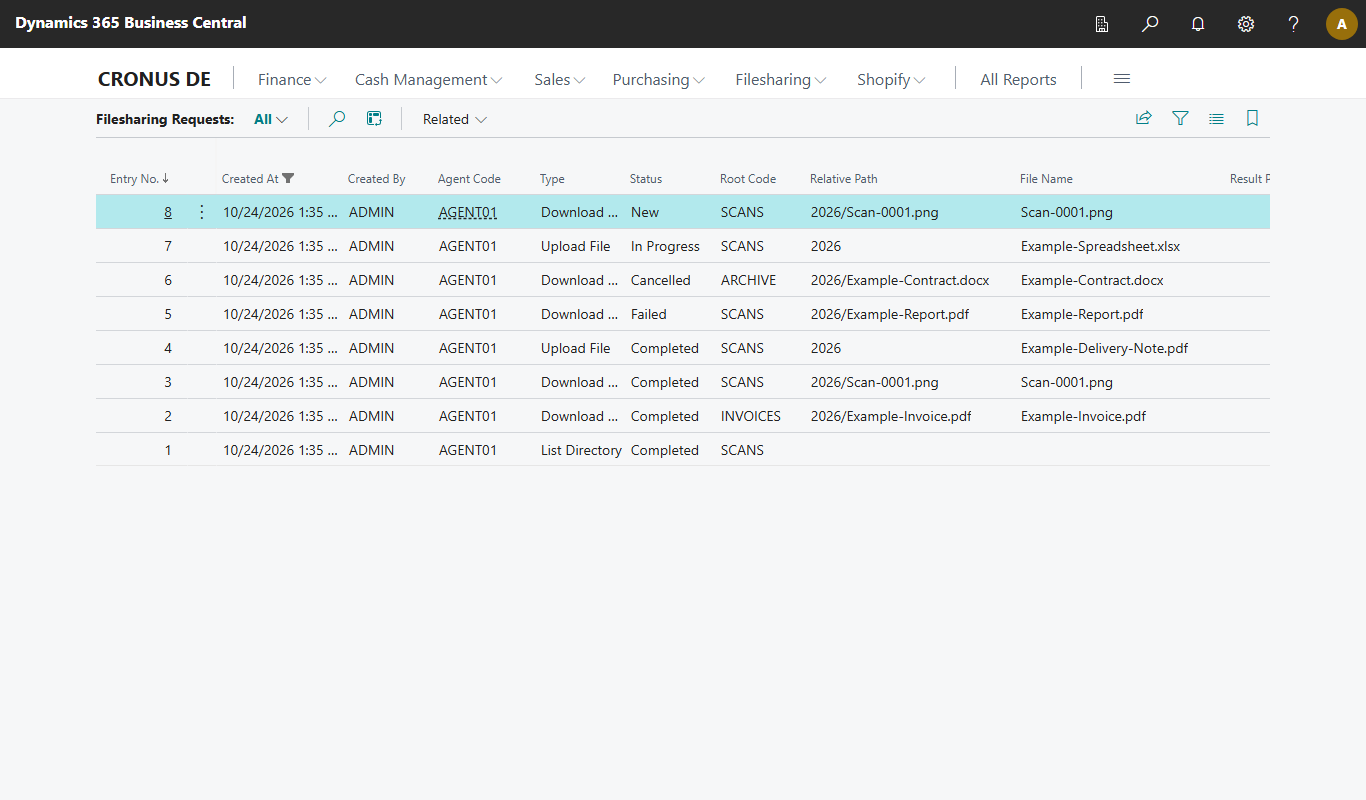
| Field | Meaning |
|---|---|
| Entry No. | Sequential number of the request. |
| Created At / Created By | When and by whom the request was created. |
| Agent Code | The agent that is to process the request. |
| Type | List Directory, Download File, Upload File or Preview File. |
| Status | See below. |
| Root Code, Relative Path | Where in the LAN the request acts. The absolute path is never in BC. |
| File Name, Result Path, File Size | Details of the transferred file or the target of an upload. |
| Result Truncated | The directory had more entries than "Max. List Entries". |
| Error Message | For Failed the code and short text of the service (see Error codes). |
| Claimed At / Completed At | When the service took over and finished the request. |
| Retry Count | How often the service repeated the transfer because of a temporary error (at most three times, see Service troubleshooting). |
| Request Id | Unique ID; it also appears in error messages of the browser with control add-in and helps when searching the service log file. |
| Stored File Entry No. | For a successful download the resulting stored file. The action Open Stored File opens it. |
Status of a request
| Status | Meaning |
|---|---|
| New | BC created the request, the service has not picked it up yet. |
| In Progress | The service has taken over the request and is working on it. |
| Completed | The service finished it successfully. |
| Failed | The service or the check in BC reported an error; details in the field Error Message. |
| Cancelled | The user cancelled, or the cleanup ended an orphaned request. |
A New request that does not change to In Progress almost always means: the service is not running or cannot reach BC. Check the page Filesharing Agents (Last Heartbeat) and Service troubleshooting.
The retention policy deletes completed, failed and cancelled requests after one week (see Expiry and cleanup).
Messages when creating a request
BC checks every request before it is created. One of these messages means that the service was not even asked.
| Message | Cause | Remedy |
|---|---|---|
| Agent %1 does not exist. | The agent code is unknown in BC. | Check the agents; an agent appears as soon as the service reports for the first time. |
| Agent %1 is blocked by an administrator. | The Active flag of the agent is off. | Activate it again in BC. |
| Agent %1 is offline. Last heartbeat: %2. | The service has not reported for longer than "Agent Offline After (sec)". | Check the service on the LAN computer, see Service troubleshooting. |
| No Filesharing agent is online. Last heartbeat of agent %1: %2. | As above, when opening the browser. | As above. |
| No active Filesharing agent is configured. | There is no active agent in BC. | Install and start the service (Install the service) or activate the agent. |
| More than one Filesharing agent is active. Specify the agent code. | Several active agents; the choice is ambiguous. | Select an agent in the selection dialog. When calling from an extension, specify the agent code (Developer). |
| Root folder %1 is not configured for agent %2. | The root folder is unknown in BC. | Check RootFolders in the service configuration. |
| Root folder %1 is currently not available on agent %2. | The service reports the folder as not reachable. | Check path, share and NTFS permissions. |
| No root folder is available for agent %1. | No root folder of the agent is available. | As above. |
| Uploads to root folder %1 are not allowed. | AllowUpload is off for the root folder. |
Enable it in the service configuration only if needed. |
| The file is larger than the configured maximum of %1 MB. | The file exceeds Max. File Size (MB). | Reduce the file or raise the limit in the Setup (at most 300 MB). |
| The file %1 has an extension that is not allowed. | The extension is not in the allowed file extensions. | Release the extension or choose another file. |
| Files of type %1 cannot be previewed. Only PDF and image files can be previewed. | The extension cannot be previewed. | Get the file and download it instead. |
| The preview is not available. Request it again. | The preview was already fetched or deleted. | Request the preview again. |
| You already have the maximum of %1 open requests. … | The limit Max. Open Requests per User within 24 hours is reached. | Wait until open requests are completed, or cancel them. |
| Agent %1 already has the maximum of %2 open requests. Try again later. | The limit Max. Open Requests per Agent is reached. | Try again later or check the limit in the setup. |
| Select at least one file. | No file is marked in the classic multi-selection. | Mark files and choose Select Files. |
| The file selection is invalid. | The selection from the browser with control add-in could not be evaluated. | Repeat the selection. |
Further messages for the multi-selection (too many files, invalid path, extension not allowed) are under Multi-selection.
Messages while waiting for the service
| Message | Meaning | Remedy |
|---|---|---|
| Waiting for agent … Elapsed: … seconds | BC is waiting for the answer of the service. | Wait. |
| The agent %1 did not answer within %2 seconds (request %3). Last heartbeat: %4. | The service did not answer the request in time. The time limit is Request Timeout (sec) of the Setup. BC cancels the request. | Check whether the service is running and reaches BC (page Filesharing Agents, Last Heartbeat). For very large directories or files check the time limit. The request number helps when searching the log file. |
| The request failed: … | The service reported an error code. | See the table below. |
| The request was cancelled. | You cancelled. | – |
| The selection was cancelled. %1 file(s) already transferred remain in the stored files. | A multi-selection was cancelled. | – |
Messages by error code
If the service reports an error, BC shows "The request failed: ", followed by plain text and the fixed short text of the service in brackets. The remedy for every code is under Error codes of a request.
| Code | Plain text in BC |
|---|---|
ROOT_UNKNOWN |
The root folder is not known to the agent. |
ROOT_UNAVAILABLE |
The root folder is currently not reachable. |
PATH_INVALID |
The path is invalid. |
PATH_NOT_FOUND |
The folder or file was not found. |
EXTENSION_NOT_ALLOWED |
The file extension is not allowed. |
FILE_TOO_LARGE |
The file exceeds the maximum file size. |
UPLOAD_NOT_ALLOWED |
Uploads to this root folder are not allowed. |
ACCESS_DENIED |
Access denied on the file server. |
CHECKSUM_MISMATCH |
The file was damaged during transfer (checksum mismatch). |
IO_ERROR |
A file system or network error occurred on the agent. |
INTERNAL |
An internal error occurred on the agent. |
Further hints
- Notification "no agent online": when the list of stored files is opened and no active agent is online, the notification "No Filesharing agent is currently online. Getting or sending files is not possible until the Windows service reports a heartbeat." appears with the action Open Agents.
- License: if BC reports a license error when getting or sending, the module is not activated, see Setup.
- Permission: if a user lacks a permission, the BC message names the table. The permission set
MGT Filesharingis responsible, see Permissions. - Contact: if the tables here do not help, give support the request ID, the status and the error message, see Contact.