Multi-Channel
MSGreenTec® BC2Shopware supports multiple Shopware Sales Channels simultaneously. Each Sales Channel can be individually configured.
Concept
In Shopware 6, a Sales Channel is an independent sales avenue (e.g. B2B shop, B2C shop, marketplace). MSGreenTec® BC2Shopware maps each Shopware Sales Channel as a single Shopware Channel record in Business Central – combining both the technical configuration (API connection, pricing, taxes) and the business configuration (order comment, etc.) in one place.
Shopware Channel
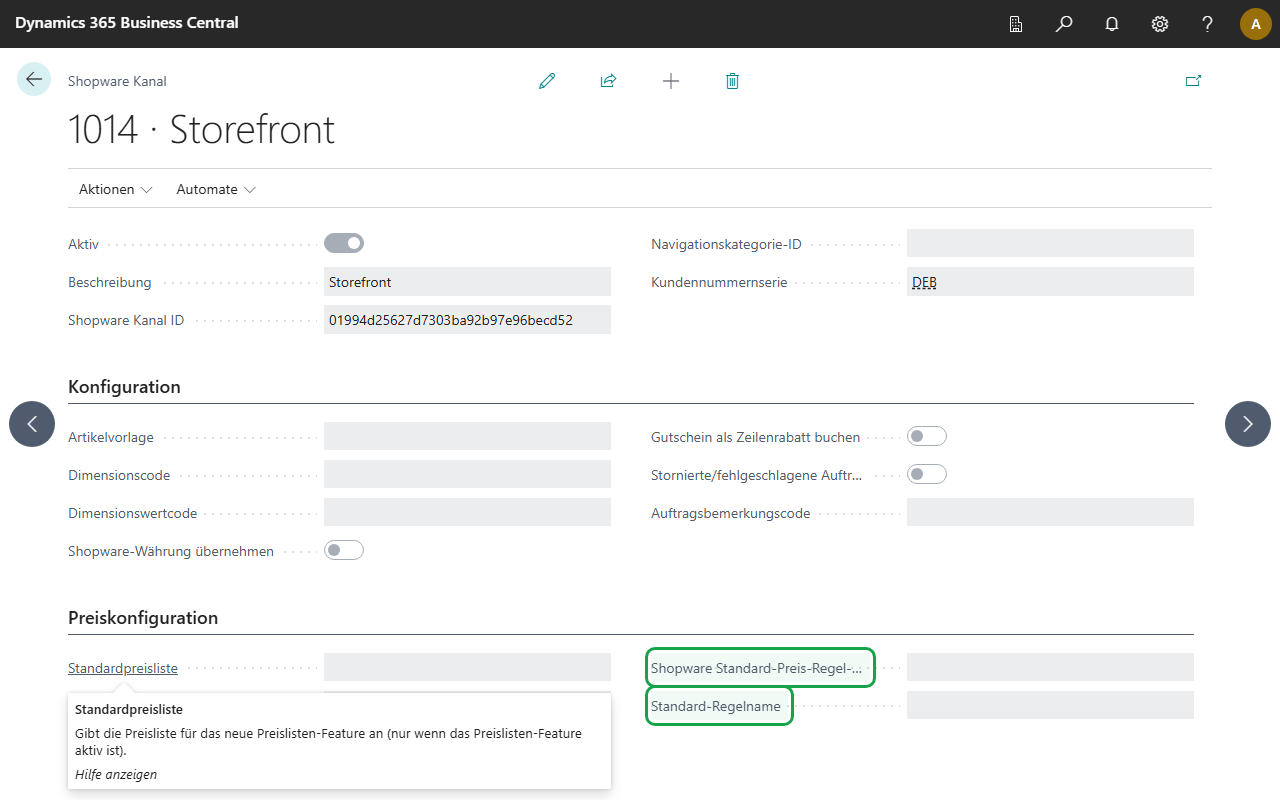
The Shopware Channel contains the configuration for communication with a Shopware Sales Channel.
Fields
| Field | Description |
|---|---|
| Channel ID | Auto-increment number (PK) |
| Description | Channel description |
| ShopChannel ID | Shopware Sales Channel UUID |
| Active | When disabled: the channel is excluded from all sync operations (price sync, inventory sync, order import etc.) |
| Item Template | Item template for new items in this channel |
| Last Get Orders | Timestamp of the last order import |
Price Configuration
| Field | Description |
|---|---|
| Standard Price List | Price list for the price list mode |
| Customer Price Group | Customer price group for legacy prices |
| VAT Bus. Posting Group | VAT business posting group for gross/net calculation |
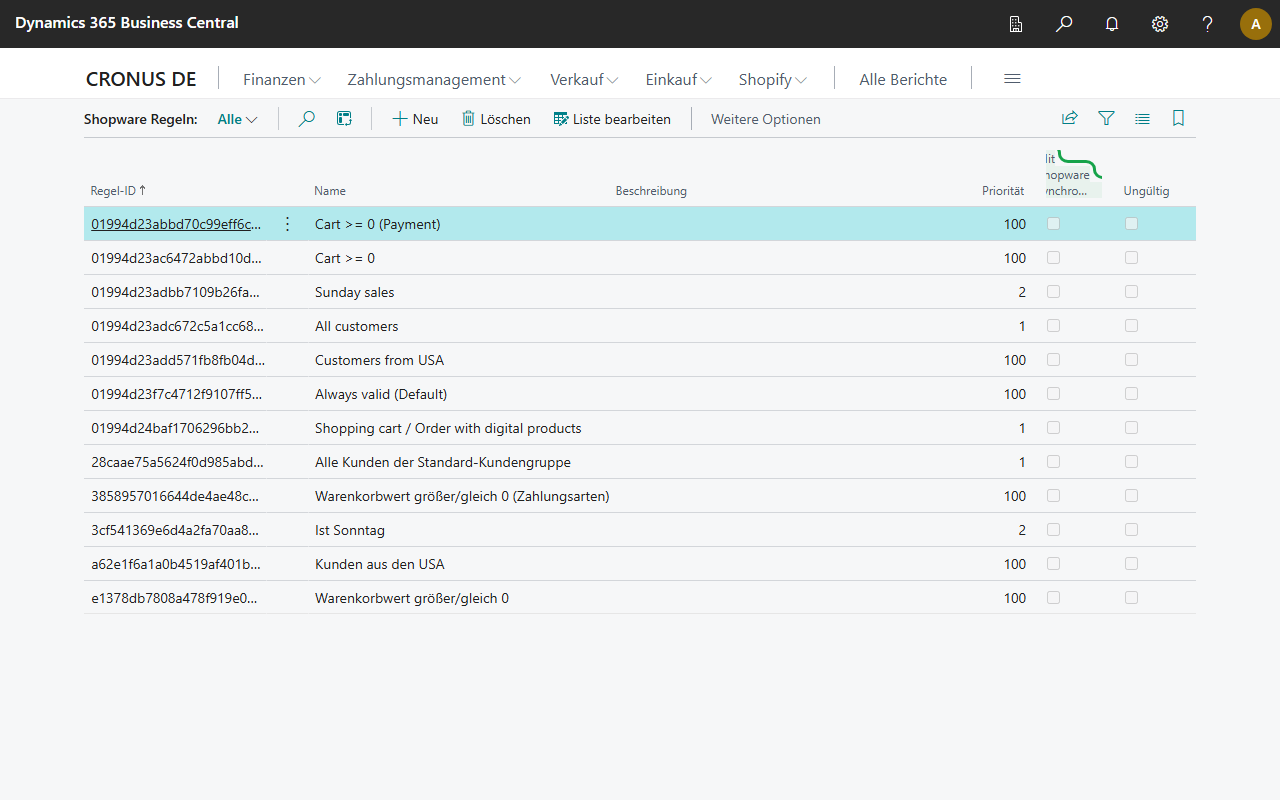
| Shopware Default Rule ID | Shopware rule ID for volume pricing |
The available rules come from the Shopware Rule List (Setup Wizard "Reference Data" step → Fetch Rules):
Order Import
| Field | Description |
|---|---|
| Apply Voucher as Line Discount | Controls how Shopware promotion discounts are posted on BC sales lines – see below |
| Order Comment Code | Standard text added as a comment line to sales orders imported from this channel |
Apply Voucher as Line Discount
This field determines how discounts from Shopware promotions (e.g. percentage codes like "−15%") are displayed on Business Central sales lines:
| Setting | Behavior | Display in BC |
|---|---|---|
| Disabled (default) | The unit price is reduced by the discount amount | Unit Price = €99.45, Line Discount % = 0 |
| Enabled | The original Shopware price remains visible; the discount appears as a Line Discount % | Unit Price = €117.00, Line Discount % = 15% |
Note: When Line Discount mode is enabled, the BC total may differ from the Shopware total by a few cents if Shopware rounds the promotion amount internally (e.g. −€21.00 instead of the exact −€21.45). The extension compensates for this difference by proportionally adjusting the unit price of the first line – the displayed line discount % remains exact.
Additional Configuration
| Field | Description |
|---|---|
| Customer No. Series | Number series for automatically created customers |
| Dimension Code / Value | Dimension assignment for postings from this channel |
Shop Item Channel Assignment
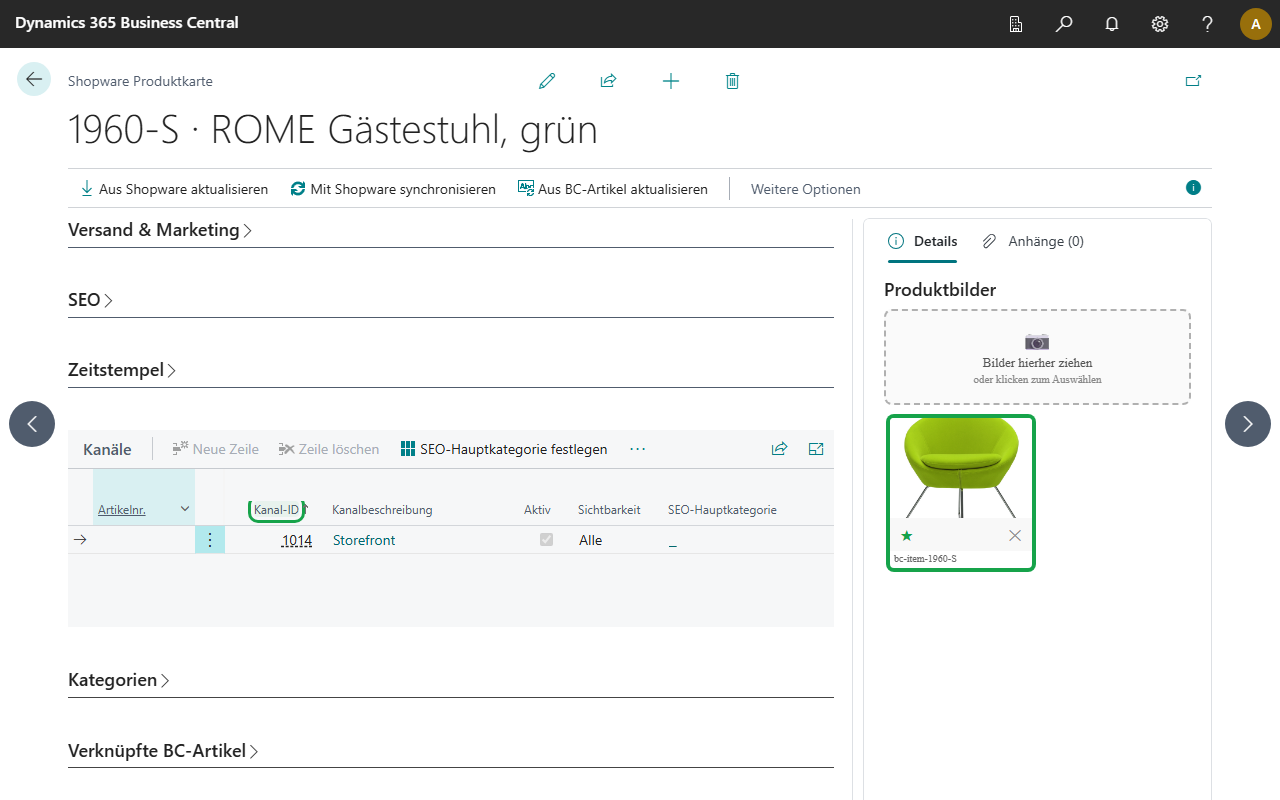
On the Shopware Product Card (tab Channels) you define which sales channels a product appears in.
| Field | Description |
|---|---|
| Item No. | BC item number. When entered, the Shopware Product ID is resolved automatically via the Shop Item BC Item mapping (useful for Rapidstart imports). |
| Channel ID | Linked Shopware Channel |
| Active | Product active in this channel |
| Visibility | All (Search + Navigation), Search Only, Link Only |
| SEO Main Category | The main category of this product in the respective channel. Controls the SEO breadcrumb in Shopware. Click … to select a category. |
SEO Main Category
Shopware uses a mainCategory entity to define the canonical breadcrumb path for SEO. This assignment is channel-specific — the same product can have different SEO main categories in different channels.
Setup:
- Open the product card → tab Channels
- Click … in the SEO Main Category column
- Select a category from the category list
- Sync the product (action Sync Visibilities or full product sync)
The internal UUID of the mainCategory entity is generated automatically on first assignment and stored permanently, so subsequent syncs update the existing entity via upsert.
When importing a product from Shopware, SEO main categories are automatically transferred to the channel assignments.
Relationships
Shopware Channel
    │
    ├──1:n──> Categories (own category tree per channel)
    │
    └──n:m──> Shop Items (via Shop Item Channel)
                  │
                  ├── Visibility: All / SearchOnly / LinkOnly
                  └── SEO Main Category (per channel)
- A Shopware Channel has its own category tree
- A Shop Item can be assigned to multiple channels, each with its own visibility and SEO main category
- Prices are calculated per channel (via the Shopware Channel's price configuration)
Importing Sales Channels
Shopware Sales Channels can be imported via the Setup Wizard:
- Open the Setup Wizard → Step "Sales Channels"
- Active Sales Channels are fetched from Shopware
- Already existing channels are skipped
- A Shopware Channel is created in BC for each new channel
Typical Configuration
B2C Shop
- Customer Price Group: RETAIL
- VAT Bus. Posting Group: DOMESTIC
B2B Shop
- Customer Price Group: WHOLESALE
- VAT Bus. Posting Group: DOMESTIC
- Standard Price List: B2B-PRICES